The draggable method
- The
draggablemethod makes one or more views draggable. - Use
drag:anddrop:modifiers for basic drag/drop animations. - Use
drag-applyordrag-animateto apply properties instantly or animate them while dragging. - Use
horizontal-constraintorvertical-constraintto constrain movement.
// Calling a draggable method
$.draggableAnimation.draggable('A View or an array of Views')
You can create a blank Animation object or reuse an existing one to call draggable on a view or array of views.
When an Animation object receives an array of views, it manages zIndex for each draggable element.
Draggable example
<Alloy>
  <Window class="keep-screen-on exit-on-close-false">
    <Animation module="purgetss.ui" id="draggableAnimation" />

    <Label text="Draggable Example" class="mt-16 text-center" />

    <View id="red" class="ml-4 h-32 w-32 rounded-lg bg-red-500" />

    <View id="green" class="ml-10 h-32 w-32 rounded-lg bg-green-500" />

    <View id="blue" class="ml-16 h-32 w-32 rounded-lg bg-blue-500" />
  </Window>
</Alloy>
$.index.open()

$.draggableAnimation.draggable([$.red, $.green, $.blue])
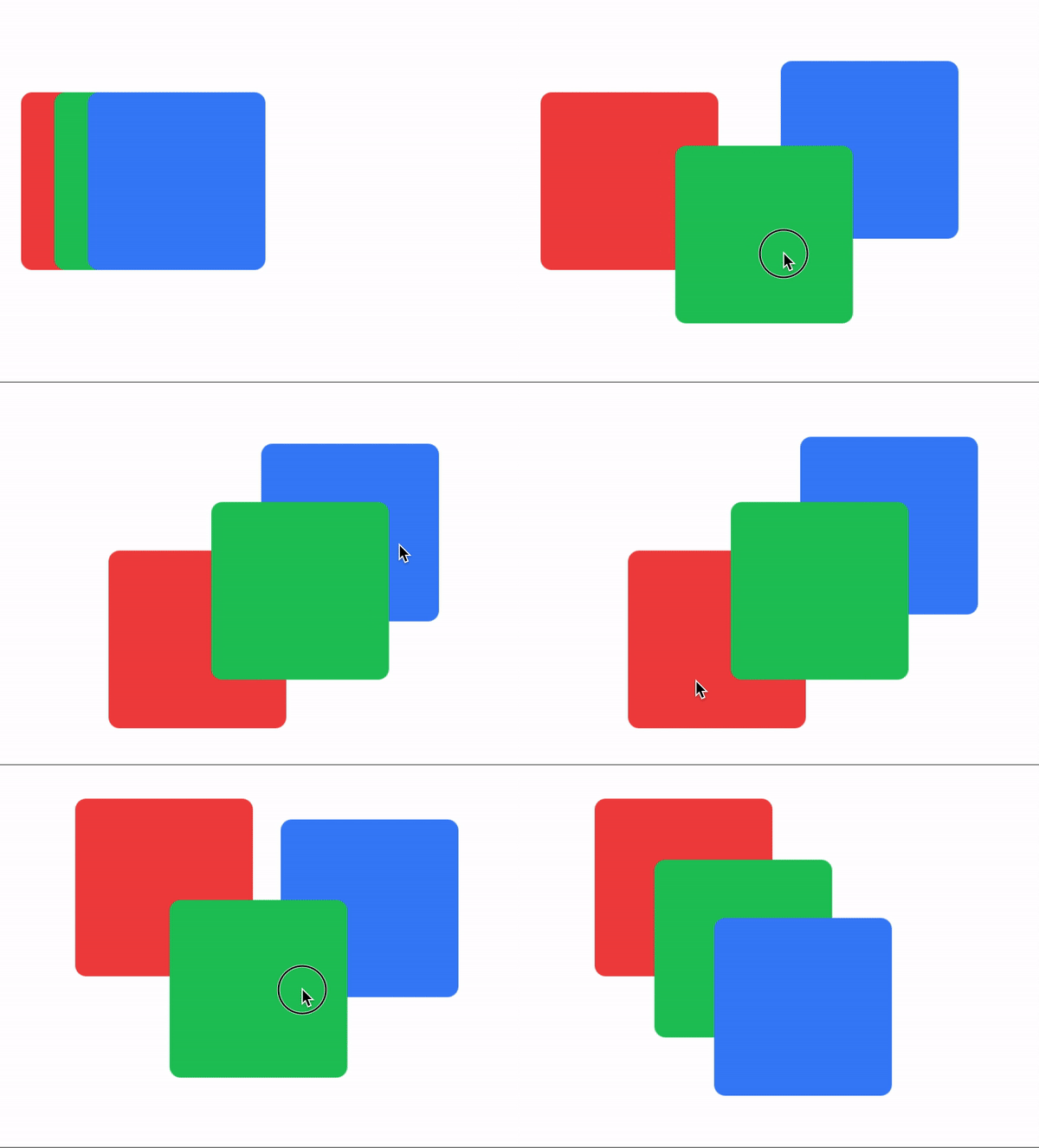
Low framerate GIF.
drag and drop modifiers
- The
drag:anddrop:modifiers set basic animations while dragging and dropping. - You can set global modifiers in the Animation object or set modifiers per view.
- Local modifiers override global modifiers.
The runtime forwards every property supplied under drag and drop; it does not filter size, scale, or anchor-point values. Transformed dragging follows separate iOS and Android code paths, so verify complex combinations on both platforms.
Drag and drop example
<Alloy>
  <Window class="keep-screen-on exit-on-close-false">
    <!-- Global set of modifiers -->
    <Animation id="draggableAnimation" module="purgetss.ui" class="drag:duration-100 drag:opacity-50 drop:opacity-100" />

    <Label text="Global Modifiers:\ndrag:duration-100 drag:opacity-50 drop:opacity-100" class="mt-16 text-center" />

    <!-- No local modifiers -->
    <Label id="red" class="mx-2 ml-4 h-32 w-32 rounded-lg bg-red-500 text-center text-xs text-white" text="No local modifiers" />

    <!-- drag:bg-green-800 drop:bg-green-500 -->
    <Label id="green" class="drag:bg-green-800 drop:bg-green-500 ml-10 h-32 w-32 rounded-lg bg-green-500 text-center text-xs text-white" text="drag:bg-green-800 drop:bg-green-500" />

    <!-- drag:opacity-25 -->
    <Label id="blue" class="drag:opacity-25 ml-16 h-32 w-32 rounded-lg bg-blue-500 text-center text-xs text-white" text="drag:opacity-25" />
  </Window>
</Alloy>
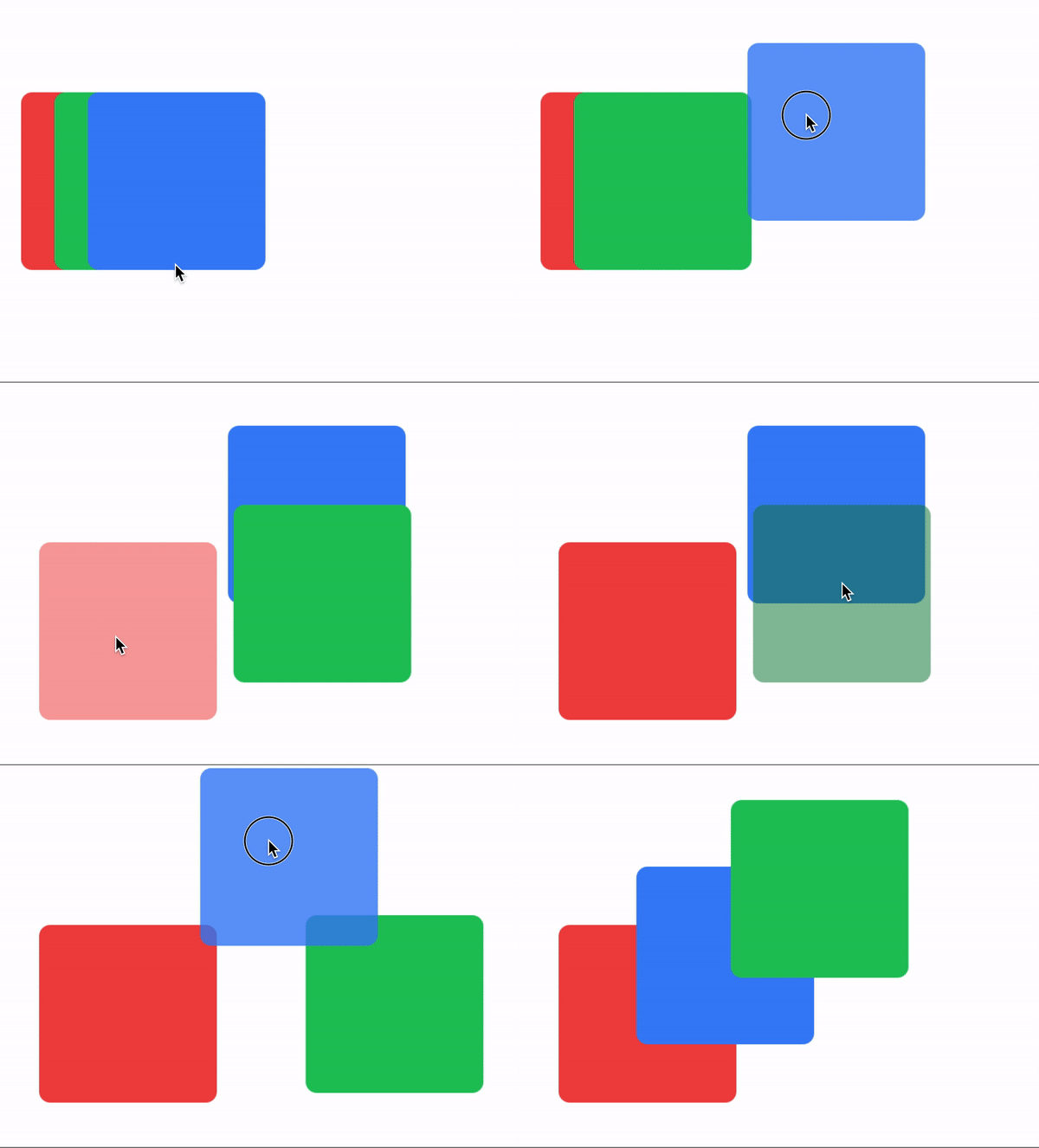
Low framerate GIF.
draggingType property
Use drag-animate (default) or drag-apply to control how drag: and drop: modifiers are applied. drag-animate animates the properties, drag-apply applies them immediately.
/* Component(s): For the Animation Component */
/* Property(ies): draggingType */
.drag-apply { draggingType: 'apply' }
.drag-animate { draggingType: 'animate' }
Dragging type example
In this example, the Animation object sets the global dragging type to drag-apply, but the green square overrides it to drag-animate.
<Alloy>
  <Window class="keep-screen-on exit-on-close-false">
    <!-- Global set of modifiers -->
    <Animation id="draggableAnimation" module="purgetss.ui" class="drag-apply drag:duration-500 drag:opacity-50 drop:opacity-100" />

    <Label text="draggingType Example:\ndrag-apply drag:duration-500 drag:opacity-50 drop:opacity-100" class="mt-16 text-center" />

    <!-- No local modifiers, uses the global modifiers -->
    <Label id="red" class="ml-4 h-32 w-32 rounded-lg bg-red-500 text-center text-xs text-white" text="No local modifiers" />

    <!-- drag-animate drag:bg-green-800 drop:bg-green-500 -->
    <Label id="green" class="drag-animate drag:bg-green-800 drop:bg-green-500 ml-10 h-32 w-32 rounded-lg bg-green-500 text-center text-xs text-white" text="drag-animate drag:bg-green-800 drop:bg-green-500" />

    <!-- drag:opacity-25 -->
    <Label id="blue" class="drag:opacity-25 ml-16 h-32 w-32 rounded-lg bg-blue-500 text-center text-xs text-white" text="drag:opacity-25" />
  </Window>
</Alloy>
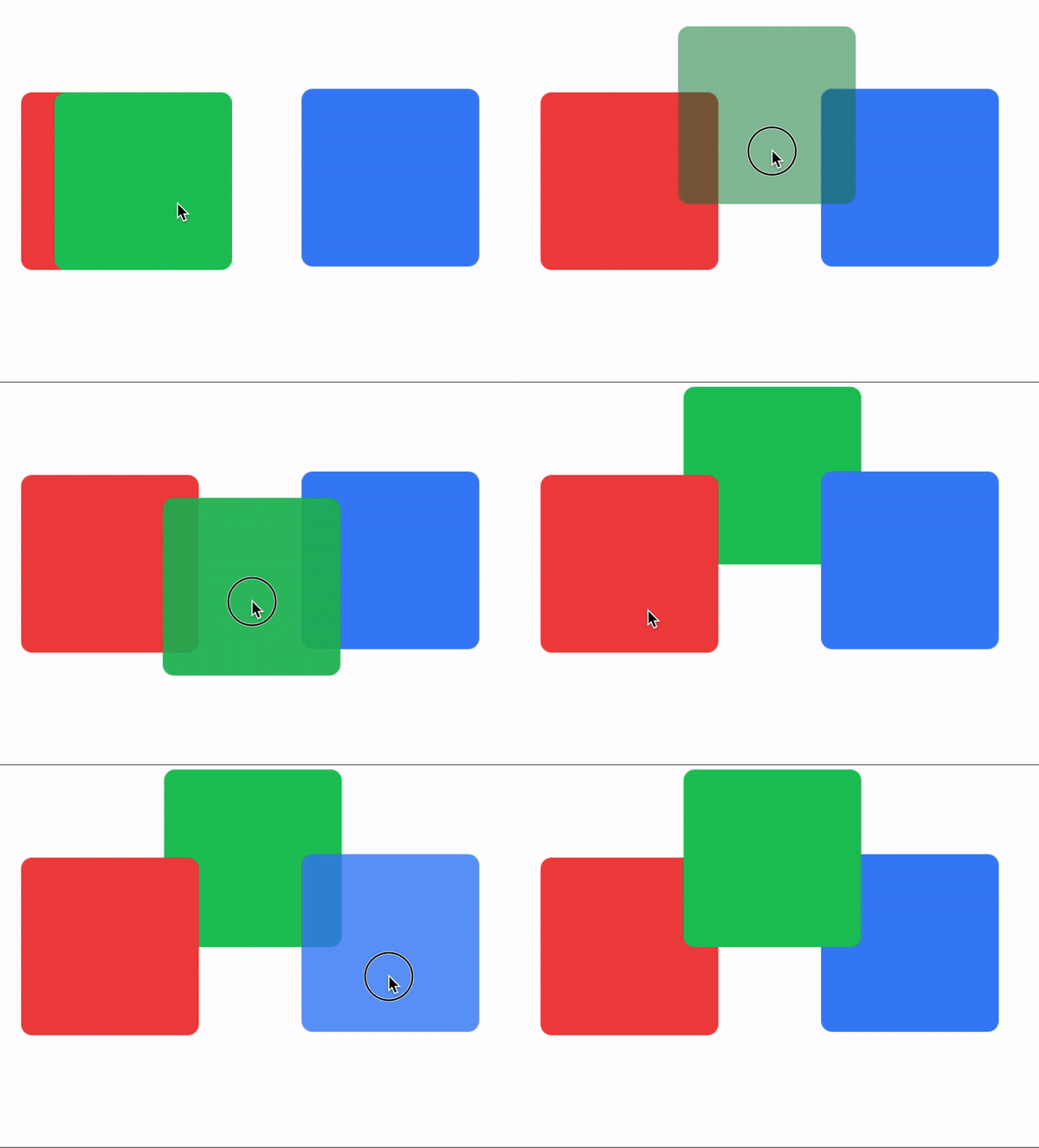
Low framerate GIF.
bounds modifier
- Use
boundswithhorizontal-constraintorvertical-constraintto limit movement within a parent view. - You can set global boundaries in the
Animationobject or local boundaries per view. - Local values override global values.
Bounds example 1
The card view has a boundary of m-4 and a bottom boundary of mb-16.
<Alloy>
  <Window class="keep-screen-on exit-on-close-false bg-green-50">
    <Animation id="draggableAnimation" module="purgetss.ui" />

    <View class="mx-6 mb-6 mt-10 h-screen w-screen rounded-lg bg-green-200">
      <View id="card" class="bounds:m-2 bounds:mb-16 mt-8 h-24 w-64 shadow-lg">
        <View id="cardInside" class="w-screen rounded-lg border-2 border-purple-700 bg-white">
          <ImageView id="theImage" class="rounded-16 prevent-default-image m-4 ml-4 h-16 w-16 bg-gray-50" image="https://randomuser.me/api/portraits/women/17.jpg" />

          <View class="vertical ml-24 w-screen">
            <Label class="ml-0 text-sm font-bold text-gray-800" text="Ms. Jane Doe" />
            <Label class="ml-0 text-xs font-bold text-gray-400" text="Website Designer" />
          </View>
        </View>
      </View>

      <Label class="bg-(#80000000) mx-2 mb-2 h-12 w-screen rounded-lg text-center text-white" text="Some Element..." />
    </View>
  </Window>
</Alloy>
$.index.open()

$.draggableAnimation.draggable($.card)
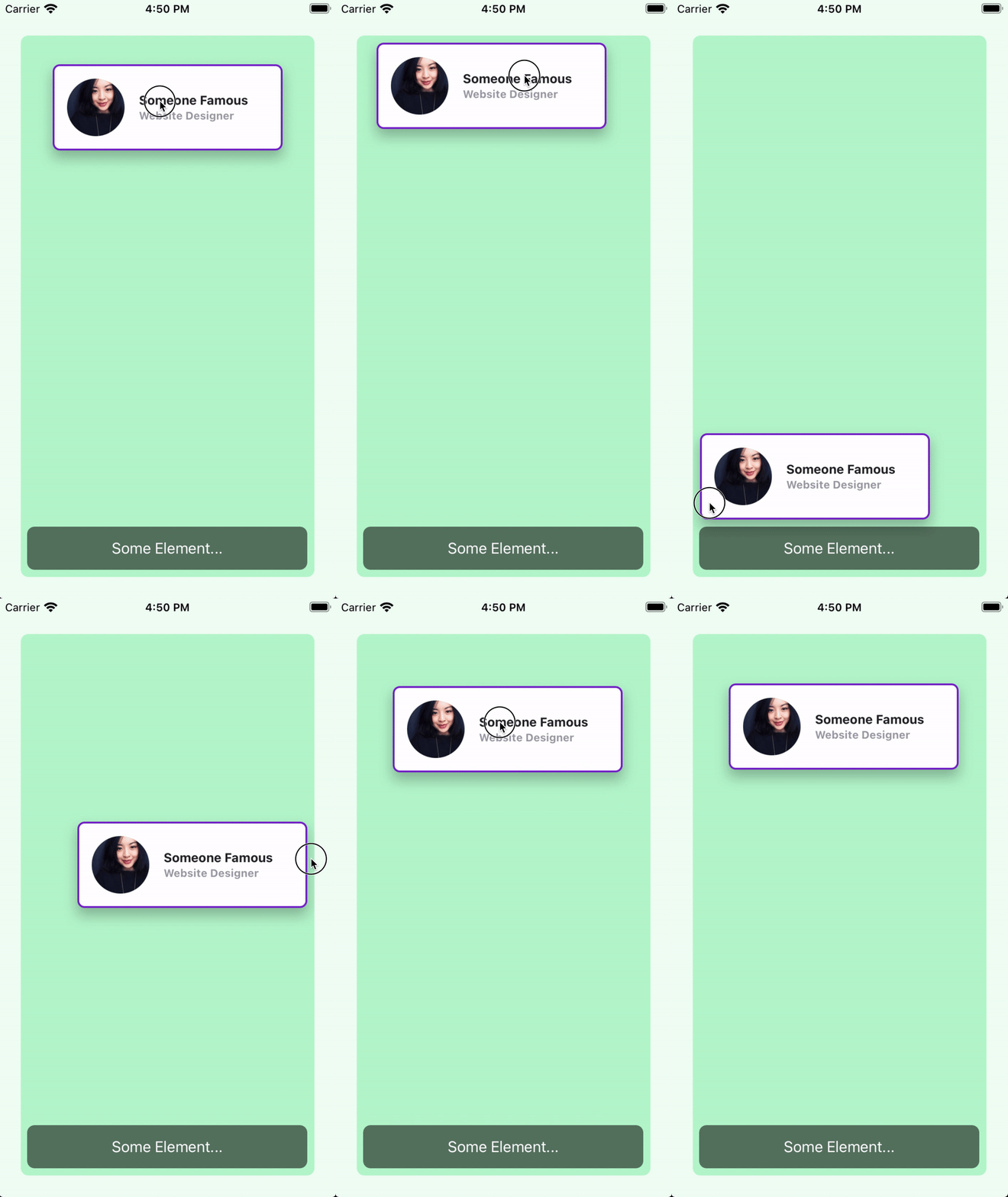
Low framerate GIF.
Bounds example 2
Here the boundaries are set globally in draggableAnimation, so every card uses the same values.
<Alloy>
  <Window class="keep-screen-on exit-on-close-false bg-green-50">
    <Animation id="draggableAnimation" module="purgetss.ui" class="bounds:m-2 bounds:mb-16" />

    <View class="wh-screen mx-6 mb-6 mt-10 rounded-lg bg-green-200">
      <View id="card" class="mt-8 h-24 w-64 shadow-lg">
        <View id="cardInside" class="w-screen rounded-lg border-2 border-purple-700 bg-white">
          <ImageView id="theImage" class="rounded-16 prevent-default-image wh-16 m-4 bg-gray-50" image="https://randomuser.me/api/portraits/women/17.jpg" />

          <View class="vertical ml-24 w-screen">
            <Label class="ml-0 text-sm font-bold text-gray-800" text="Ms. Jane Doe" />
            <Label class="ml-0 text-xs font-bold text-gray-400" text="Website Designer" />
          </View>
        </View>
      </View>

      <View id="card2" class="mt-40 h-24 w-64 shadow-lg">
        <View id="cardInside" class="w-screen rounded-lg border-2 border-purple-700 bg-white">
          <ImageView id="theImage" class="rounded-16 prevent-default-image wh-16 m-4 bg-gray-50" image="https://randomuser.me/api/portraits/women/21.jpg" />

          <View class="vertical ml-24 w-screen">
            <Label class="ml-0 text-sm font-bold text-gray-800" text="Ms. Jane Doe" />
            <Label class="ml-0 text-xs font-bold text-gray-400" text="Website Designer" />
          </View>
        </View>
      </View>

      <View id="card3" class="mt-72 h-24 w-64 shadow-lg">
        <View id="cardInside" class="w-screen rounded-lg border-2 border-purple-700 bg-white">
          <ImageView id="theImage" class="rounded-16 prevent-default-image wh-16 m-4 bg-gray-50" image="https://randomuser.me/api/portraits/women/25.jpg" />

          <View class="vertical ml-24 w-screen">
            <Label class="ml-0 text-sm font-bold text-gray-800" text="Ms. Jane Doe" />
            <Label class="ml-0 text-xs font-bold text-gray-400" text="Website Designer" />
          </View>
        </View>
      </View>

      <Label class="bg-(#80000000) mx-2 mb-2 h-12 w-screen rounded-lg text-center text-white" text="Some Element..." />
    </View>
  </Window>
</Alloy>
$.index.open()

$.draggableAnimation.draggable([$.card, $.card2, $.card3])
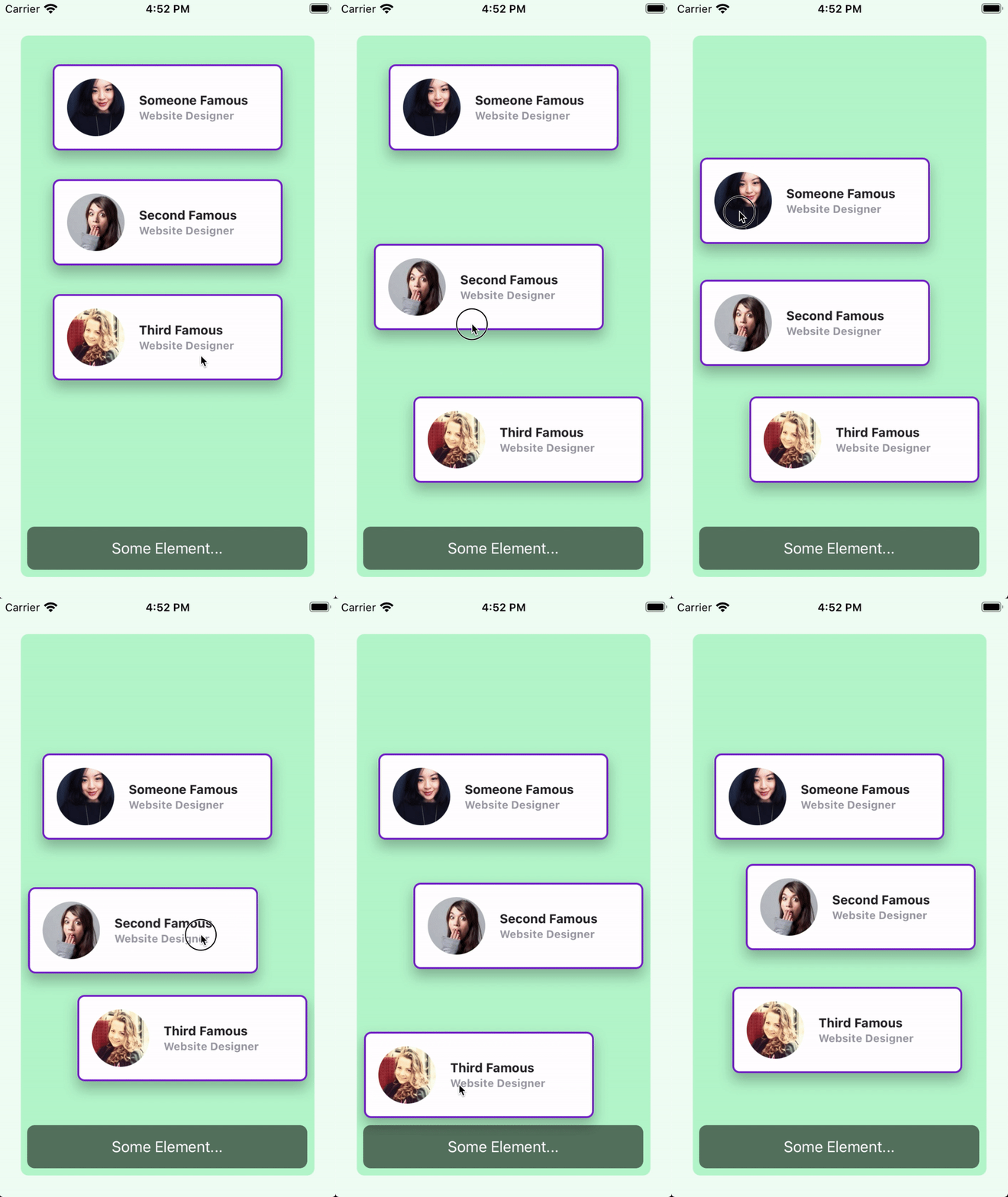
Low framerate GIF.
vertical and horizontal constraints
Add vertical-constraint or horizontal-constraint to restrict movement while dragging.
/* Component(s): Ti.UI.Animation */
/* Property(ies): A custom property to use it with the Animation module */
'.horizontal-constraint': { constraint: 'horizontal' }
'.vertical-constraint': { constraint: 'vertical' }
Constraint example
In this example, the card view moves only side to side.
<Alloy>
  <Window class="keep-screen-on exit-on-close-false">
    <Animation id="draggableAnimation" module="purgetss.ui" />

    <View id="card" class="horizontal-constraint h-24 w-64 shadow-lg">
      <View id="cardInside" class="w-screen rounded-lg border-2 border-purple-700 bg-white">
        <ImageView id="theImage" class="rounded-16 wh-16 m-4 ml-4" image="https://randomuser.me/api/portraits/women/17.jpg" />

        <View class="vertical ml-24 w-screen">
          <Label class="ml-0 text-sm font-bold text-gray-800" text="Ms. Jane Doe" />
          <Label class="ml-0 text-xs font-bold text-gray-400" text="Website Designer" />
        </View>
      </View>
    </View>
  </Window>
</Alloy>
$.index.open()

$.draggableAnimation.draggable($.card)
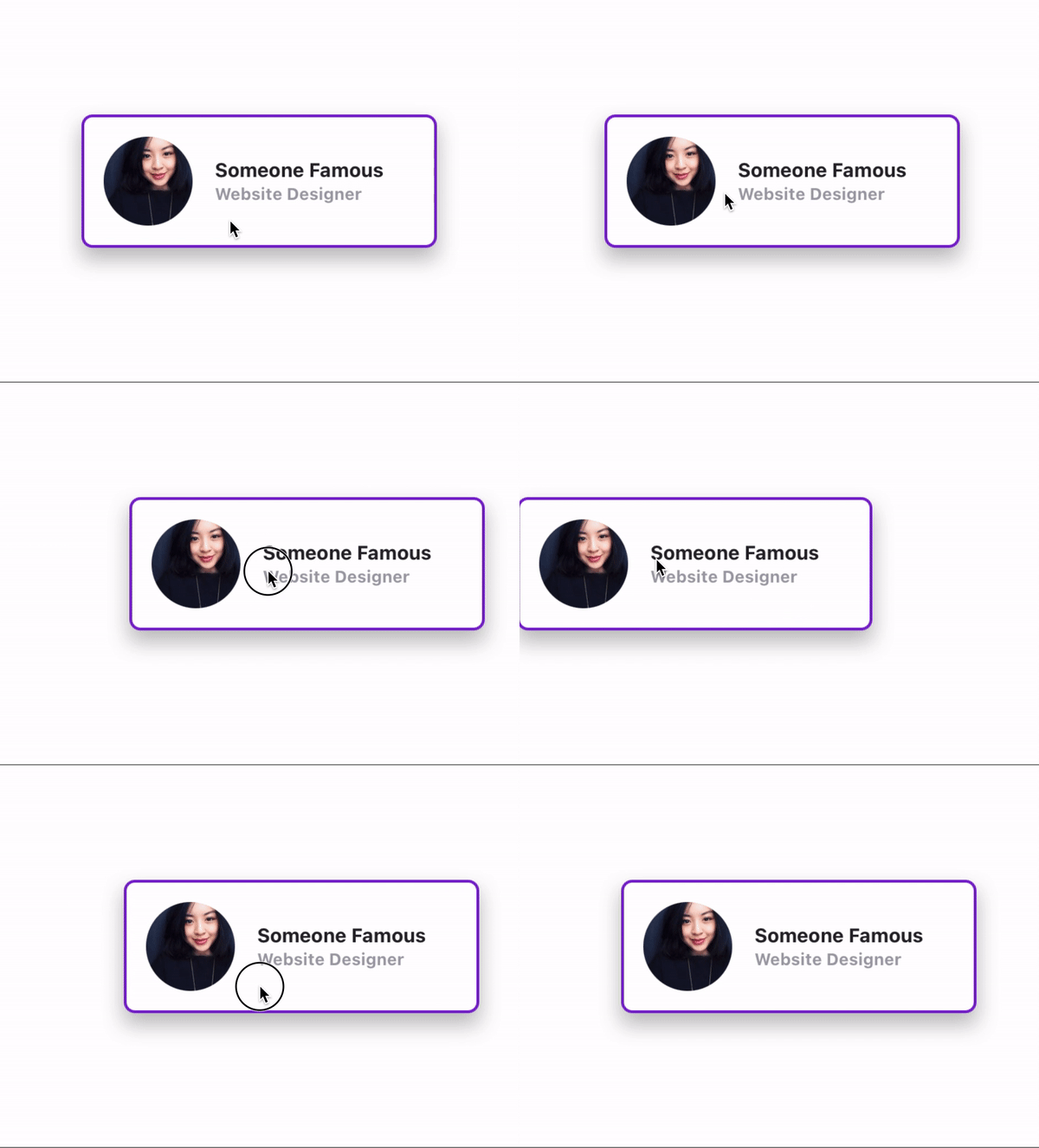
Low framerate GIF.
The undraggable method
Use undraggable to remove drag behavior and the module-owned listeners from one or more views.
$.draggableAnimation.undraggable($.card)

// or with an array of views
$.draggableAnimation.undraggable([$.card1, $.card2, $.card3])
This method:
- Removes
touchstart,touchend, andtouchmovelisteners from each view - Removes the
orientationchangelistener fromTi.Gesture - Removes the views from the collision detection registry
- Cleans up internal tracking properties (
_originTop,_originLeft,_visualTop,_visualLeft,_collisionEnabled,_bouncingBack,_dragListeners)
The current runtime does not delete the private _wasDragged property. Do not use that internal flag as application state. Also avoid calling draggable() more than once for the same view because registrations are not deduplicated.
Real-world use cases
Lock a piece after correct placement in a puzzle game:
// When the piece lands on the correct slot
if (source.valor === target.valor) {
  $.anim.undraggable(source)  // Can't move it anymore
  source.applyProperties({ opacity: 0.6 })
}
Toggle between edit and presentation mode:
function enterEditMode() {
  $.anim.draggable(views)
}

function enterPresentationMode() {
  $.anim.undraggable(views)
  $.anim.transition(views, showcaseLayout)
}
Clean up when closing a Window to prevent memory leaks:
function onClose() {
  $.anim.undraggable(allDraggableViews)
}
This is especially important for the Ti.Gesture.orientationchange listener, which is global and does not get cleaned up automatically when the Window closes.
The detectCollisions method
After calling draggable(), you can enable collision detection to know when a dragged view hovers over or is dropped onto another view.
$.draggableAnimation.draggable(views)
$.draggableAnimation.detectCollisions(views, onHover, onDrop)
Parameters
| Parameter | Type | Description |
|---|---|---|
views | View/Array | The view or array of views to register for collision detection |
dragCB | Function | Called during drag when the source hovers over a target |
dropCB | Function | Called on drop when a collision target is found |
How collision detection works
Collision is based on center-point hit testing: the center of the dragged view is checked against the rect bounds of each registered view.
dragCB(source, target) is called during drag:
targetis the view under the drag center, ornullwhen leaving all targets- Use this to show visual feedback (highlights, borders, scaling)
dropCB(source, target) is called on drop:
targetis the view where the source was released- Snap behavior on drop depends on the classes applied to the
<Animation>object (see below)
Snap classes
Both snap behaviors are off by default. Opt in with classes on the <Animation> object:
| Class | TSS Rule | Behavior |
|---|---|---|
snap-back | animationProperties: { snap: { back: true } } | View returns to its origin position when dropped outside any collision target |
snap-center | animationProperties: { snap: { center: true } } | View auto-centers on the target when dropped on it (uses snapTo internally) |
You can use both together:
<!-- Snap back when missing + center on target -->
<Animation id="myAnim" module="purgetss.ui" class="snap-back snap-center duration-200" />
Without snap-back, the view stays wherever you drop it, even if no target was hit.
Without snap-center, the view stays at the exact drop position on the target, with no centering.
Collision detection example
<Alloy>
  <Window class="keep-screen-on">
    <Animation id="myAnimation" module="purgetss.ui" class="snap-back snap-center duration-200" />

    <View id="dropZone" class="wh-32 mt-8 rounded-lg border-2 border-dashed border-gray-400 bg-gray-100" />

    <View id="card" class="wh-24 mt-48 rounded-lg bg-blue-500" />
  </Window>
</Alloy>
$.index.open()

const views = [$.dropZone, $.card]

$.myAnimation.draggable(views)

$.myAnimation.detectCollisions(views,
  // dragCB: visual feedback while hovering
  (source, target) => {
    if (target) {
      target.borderColor = 'green'
      target.backgroundColor = '#dcfce7'
    } else {
      // Reset all potential targets
      $.dropZone.borderColor = '#9ca3af'
      $.dropZone.backgroundColor = '#f3f4f6'
    }
  },
  // dropCB: handle the drop
  (source, target) => {
    console.log(`Dropped ${source.id} onto ${target.id}`)
    // Reset visual feedback
    target.borderColor = '#9ca3af'
    target.backgroundColor = '#f3f4f6'
  }
)
Real-world use case: drag-to-swap grid
A 3x3 grid where dragging a card onto another swaps their positions. This combines draggable, detectCollisions, and swap:
<Alloy>
  <Window class="bg-slate-900" onClose="onClose">
    <Animation id="gridAnim" module="purgetss.ui" class="snap-back duration-150" />

    <!-- 3x3 Grid: 80px boxes (wh-20), 88px spacing -->
    <View class="clip-disabled">
      <!-- Row 0 -->
      <View id="c0" class="wh-20 left-0 top-0 rounded-xl bg-red-500 shadow-lg">
        <Label class="touch-enabled-false text-sm font-bold text-white" text="1" />
      </View>
      <View id="c1" class="wh-20 left-(88) top-0 rounded-xl bg-blue-500 shadow-lg">
        <Label class="touch-enabled-false text-sm font-bold text-white" text="2" />
      </View>
      <View id="c2" class="wh-20 left-(176) top-0 rounded-xl bg-green-500 shadow-lg">
        <Label class="touch-enabled-false text-sm font-bold text-white" text="3" />
      </View>

      <!-- Row 1 -->
      <View id="c3" class="wh-20 left-0 top-(88) rounded-xl bg-amber-500 shadow-lg">
        <Label class="touch-enabled-false text-sm font-bold text-white" text="4" />
      </View>
      <!-- ...c4 through c8 follow the same pattern -->
    </View>
  </Window>
</Alloy>
const cards = [$.c0, $.c1, $.c2, $.c3, $.c4, $.c5, $.c6, $.c7, $.c8]

// 1. Make all cards draggable
$.gridAnim.draggable(cards)

// 2. Enable collision + swap on drop
let lastTarget = null

$.gridAnim.detectCollisions(cards,
  function (source, target) {
    // Reset previous highlight
    if (lastTarget && lastTarget !== target) {
      lastTarget.applyProperties({ opacity: 1 })
    }
    if (target) {
      target.applyProperties({ opacity: 0.6 })
    }
    lastTarget = target
  },
  function (source, target) {
    if (target) {
      target.applyProperties({ opacity: 1 })
      $.gridAnim.swap(source, target)
    }
    lastTarget = null
  }
)

// 3. Clean up on close
function onClose() {
  $.gridAnim.undraggable(cards)
}
The flow uses three calls: draggable, detectCollisions, and swap inside the drop callback. lastTarget tracks the current hover target, and the if (target) guard prevents errors when dropping outside any card.
Titanium Classic
In Classic, store drag configuration on the animation object and per-view overrides directly on the Titanium views. A view's bounds override the corresponding global bounds, while axis constraints are read only from view.constraint.
const { createAnimation } = require('lib/purgetss.ui')

const dragMotion = createAnimation({
  duration: 160,
  bounds: { top: 12, right: 12, bottom: 12, left: 12 },
  draggable: {
    drag: { opacity: 0.65, scale: 1.04 },
    drop: { opacity: 1, scale: 1 }
  },
  animationProperties: {
    keepZIndex: true,
    snap: { back: true, center: true }
  }
})

piece.bounds = { bottom: 32 }
piece.constraint = 'horizontal'
piece.draggingType = 'apply'

function onHover(source, target) {
  dropZone.borderColor = target === dropZone ? '#22c55e' : '#64748b'
}

function onDrop(source, target) {
  Ti.API.info(`${source.id} -> ${target.id}`)
}

function enablePlayground() {
  dragMotion.draggable(piece)
  dragMotion.detectCollisions([piece, dropZone], onHover, onDrop)
}

function disposePlayground() {
  // This also removes the drop zone from the collision registry.
  dragMotion.undraggable([piece, dropZone])
  window.removeEventListener('open', enablePlayground)
  window.removeEventListener('close', disposePlayground)
}

window.addEventListener('open', enablePlayground)
window.addEventListener('close', disposePlayground)
Collision detection checks whether the dragged view's center is inside a registered target. Initialize it after the views are attached and laid out because the runtime reads rect and calls convertPointToView(). During a drag, the hover callback receives (source, targetOrNull); the drop callback only runs when a target is found.
On Android, touch end consolidates translation, rotate, scale, and the equivalent matrix before snap or drop handling. See Classic drag configuration and lifecycle for the complete object shape.